
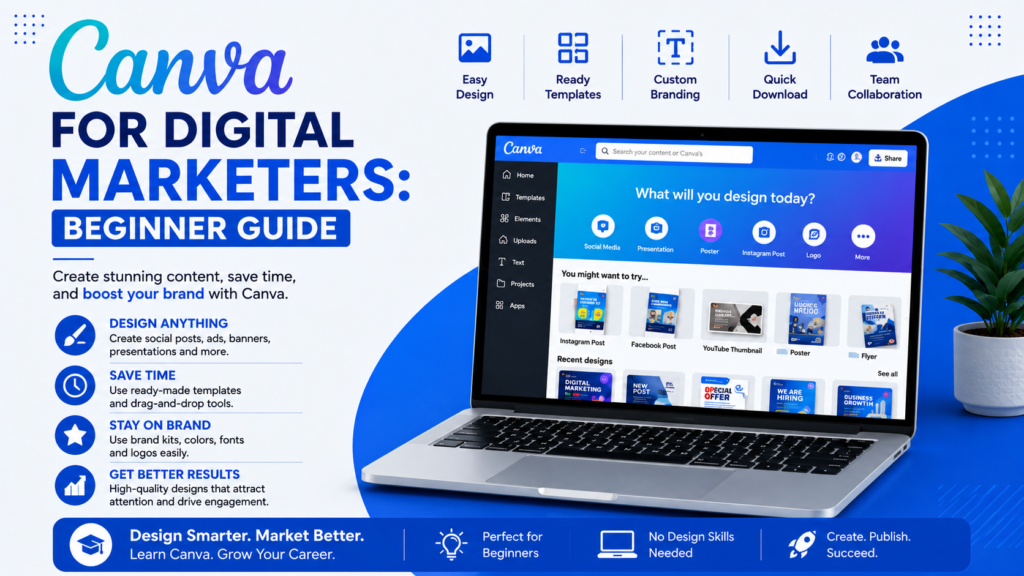
If you’ve ever stared at a blank screen wondering how to create a professional-looking Instagram post, Facebook ad, or pitch deck without a design degree — Canva was built for you.
Canva is the world’s most widely used online graphic design tool, and for digital marketers, it’s nothing short of a superpower. Whether you’re a startup founder building your brand, a social media manager publishing content daily, or a student just stepping into digital marketing course in Mysore, Canva will be one of the first tools you’ll reach for.
This guide walks you through everything you need to know about Canva for digital marketing — from setting up your account to designing campaign assets that actually convert.
What Is Canva and Why Do Digital Marketers Use It?
Canva is a cloud-based design platform that lets anyone — with or without design skills — create stunning visuals for marketing. Launched in 2013, it now serves over 170 million users in 190 countries.
For digital marketers, Canva solves a fundamental challenge: the need for constant, high-quality visual content without the time or budget for a dedicated designer.
Here’s why Canva has become the go-to tool in digital marketing workflows:
- Drag-and-drop interface — no learning curve required
- Pre-sized templates for every social media platform
- Brand Kit to maintain consistent colors, fonts, and logos
- Collaboration features for teams working remotely
- Free and Pro plans to suit every budget
- AI-powered tools like Magic Write and Background Remover
According to Canva’s 2024 Visual Economy Report, 82% of marketers say visuals are critical to their communication strategy, and teams using design tools like Canva report up to 40% faster content production.
Setting Up Your Canva Account: A Step-by-Step Start
Getting started on Canva takes less than five minutes. Here’s how to do it right the first time.
Step 1: Create Your Free Account
Go to canva.com and sign up using your Google account, Facebook, or email. For marketers and businesses, signing up with a Google Workspace account is recommended for easier collaboration.
Step 2: Select Your Account Type
Canva will ask what you use it for — choose “For Work” or “For Social Media” depending on your primary use case. This personalises your template suggestions right from the start.
Step 3: Set Up Your Brand Kit
This step is critical for digital marketers. Go to Brand Kit under your account settings and upload:
- Your logo (transparent PNG works best)
- Brand colours (add your hex codes)
- Brand fonts (or choose from Canva’s library)
Once done, every design you create can instantly apply your brand identity with one click — saving you significant time across campaigns.
Step 4: Explore the Dashboard
The Canva dashboard has five key areas to know:
- Home — recent designs and recommendations
- Templates — browseable by category and platform
- Projects — organize your designs by client or campaign
- Brand Kit — your brand assets
- Shared with Me — collaborative designs from teammates
Canva Features Every Digital Marketer Must Know
Canva offers hundreds of features, but as a digital marketer, there are specific ones that directly impact your campaign output and efficiency.
1. Social Media Templates
Canva has pre-sized templates for every major platform — Instagram posts (1080×1080px), Stories (1080×1920px), Facebook ads, LinkedIn banners, YouTube thumbnails, and more. These templates are designed by professionals and updated regularly to match current design trends.
Pro tip: Filter templates by “Blank” if you prefer starting from a clean canvas with the right dimensions already set.
2. Magic Resize (Pro Feature)
Magic Resize is a time-saver that every marketer running multi-platform campaigns needs. Create one design and instantly resize it for Instagram, Facebook, LinkedIn, and Twitter with a single click — maintaining design proportions automatically.
3. Background Remover
Need to place a product photo on a clean white background or swap it against a campaign visual? Background Remover uses AI to cleanly remove image backgrounds in seconds — no Photoshop required.
4. Magic Write (AI Copywriting)
Magic Write is Canva’s built-in AI text generator. You can use it to generate ad copy, social media captions, headlines, and even blog post outlines directly inside your design workspace. For marketers producing high volumes of content, this is a meaningful productivity boost.
5. Canva Presentations
Canva has emerged as a serious alternative to Google Slides and PowerPoint for business presentations. You can build pitch decks, client proposals, webinar slides, and workshop materials — all shareable via link without downloading a file.
6. Content Planner
Canva’s built-in Content Planner lets you schedule social media posts directly to Instagram, Facebook, LinkedIn, Twitter/X, and Pinterest from within the platform. For solo marketers and small teams, this reduces the need for separate scheduling tools.
7. Video and Reel Maker
Beyond static graphics, Canva supports short-form video creation. You can add transitions, animations, voiceovers, and music to create Instagram Reels, YouTube Shorts, and promotional videos without any video editing experience.
How to Use Canva for Digital Marketing Campaigns
Let’s walk through how Canva fits into real digital marketing workflows across the most common channels.
Social Media Marketing
Social media is where Canva shines brightest. Here’s a typical workflow for a weekly social media content plan:
- Choose a content theme for the week (e.g., “Client Testimonials”)
- Search Canva templates for the relevant format
- Apply your Brand Kit (colours + fonts + logo)
- Swap out placeholder text and images with your content
- Use Magic Resize to export versions for each platform
- Schedule directly via Content Planner or download and upload to your preferred scheduler
A well-structured weekly design workflow using Canva can reduce your social media content production time by up to 60% compared to building from scratch in traditional design software.
Email Marketing
Canva can be used to design visually rich email headers, banners, and promotional graphics that you export and embed in email platforms like Mailchimp, Zoho Mail, or ConvertKit. Canva even offers email-sized templates (600px width) designed specifically for email clients.
Google Ads and Meta Ads
Canva includes standard ad size templates for Google Display Network (300×250, 728×90, 160×600) and Meta Ads (1200×628 for link ads, 1080×1080 for square). You can design multiple ad variations quickly and export them in the correct format for your ad platform uploads.
Content Marketing and Blog Visuals
Every blog post benefits from a custom featured image and visual content within the article. Canva lets you create blog banners, infographics, data charts, and quote graphics that improve time-on-page and make your content more shareable.
Presentations and Proposals
For agency owners and freelance marketers, creating polished client proposals and campaign presentations is part of the job. Canva’s presentation templates are professionally designed and can be shared via a simple link — no PDF attachment required.
Canva Free vs Canva Pro: What Marketers Need to Know
Canva offers a generous free plan, but the Pro plan unlocks features that significantly accelerate marketing production.
| Feature | Canva Free | Canva Pro |
|---|---|---|
| Templates | 250,000+ | 610,000+ |
| Storage | 5 GB | 1 TB |
| Brand Kit | 1 Brand Kit | Unlimited Brand Kits |
| Magic Resize | Not available | ✓ Included |
| Background Remover | Not available | ✓ Included |
| Premium Elements | Limited | Unlimited access |
| Content Scheduler | ✓ Basic | ✓ Advanced |
| Price (India) | Free | ~₹3,999/year |
For individual marketers starting out, the free plan is more than sufficient. Once you’re managing multiple clients or brands, Canva Pro’s multi-brand kit and Magic Resize become essential.
Canva Tips and Best Practices for Digital Marketers
Here are proven tips to get the most out of Canva in your marketing work:
1. Build a Design System Inside Canva
Create a “Master Template” folder with your most-used design formats — Instagram post, Stories, LinkedIn banner, blog header. Every time you need new content, duplicate from these masters instead of starting fresh. This enforces brand consistency and speeds up production.
2. Use Folders and Naming Conventions
Organise your Canva workspace with folders per client, per campaign, or per month. A clean naming convention like Client_CampaignName_Month makes it easy to find assets months later when a client asks for an old campaign file.
3. Leverage the Element Search
Canva’s element library has millions of icons, illustrations, and photos. Use specific search terms — “flat icon marketing funnel” instead of just “funnel” — to get more relevant, high-quality results faster.
4. Export Smart
Different assets need different export settings. Use PNG for graphics with transparent backgrounds, JPEG for photographs and ad creatives (smaller file size), MP4 for animated posts and videos, and PDF for presentations and proposals.
5. Use Canva for Client Collaboration
Instead of sending design files back and forth via email, share a Canva design link with “Can comment” permissions. Clients can leave feedback directly on the design, reducing revision rounds and miscommunication.
6. Pair Canva with a Content Calendar
Canva is a design tool, not a planning tool. Use it alongside a content calendar (Google Sheets, Notion, or Trello) to plan what designs you need each week, then batch-create them in Canva for maximum efficiency.
Canva for Digital Marketing: Common Mistakes Beginners Make
Learning to use Canva well also means learning what not to do. Here are the most common mistakes new marketers make:
- Using too many fonts — Stick to two: one for headings, one for body text.
- Ignoring whitespace — Crowded designs reduce readability and brand perception.
- Low-resolution downloads — Always export at 2x resolution for digital use and 300 DPI for print.
- Skipping the Brand Kit — Inconsistent colours and fonts erode brand recognition over time.
- Overusing free templates unchanged — Templates are starting points. A template without customisation looks generic and unmemorable.
- Not optimising file sizes — Large image files slow down website load times. Compress before uploading to WordPress or ad platforms.
Learning Canva as Part of Your Digital Marketing Skill Set
Canva is not a standalone skill — it works best when paired with a solid understanding of digital marketing principles. Knowing how to design a great ad creative is far more powerful when you also understand campaign targeting, consumer psychology, and platform algorithms.
If you’re looking to build a complete digital marketing skill set — from content creation and SEO to paid ads and analytics — a structured learning path makes all the difference. At ETMark Academy, the digital marketing course in Mysore is designed to give students and working professionals hands-on training with real tools including Canva, Google Ads, Meta Ads Manager, and more.
Learning Canva within the context of a full marketing program ensures you’re not just a designer — you’re a marketer who can design.
Frequently Asked Questions About Canva for Digital Marketing
Is Canva good for digital marketing?
Yes, Canva is one of the best tools available for digital marketing, especially for individuals and small teams who need to produce consistent visual content without a dedicated graphic designer. It covers social media graphics, presentations, ad creatives, email visuals, and more — all from a single platform.
Can I use Canva for free as a digital marketer?
Absolutely. Canva’s free plan includes over 250,000 templates, basic design tools, and a limited Brand Kit. It’s sufficient for most individual marketers getting started. The Pro plan at ₹3,999/year is worth the upgrade when you manage multiple brands or need Magic Resize and Background Remover regularly.
What can you create with Canva for digital marketing?
With Canva, digital marketers can create social media posts, Stories, Reels, Facebook and Google ads, email headers, blog graphics, infographics, presentations, pitch decks, YouTube thumbnails, WhatsApp promotional images, and print materials like flyers and brochures.
Does Canva have templates for Meta Ads and Google Ads?
Yes. Canva includes pre-sized templates for all standard Meta Ads formats (1200×628, 1080×1080, 1080×1920) and Google Display Network ad sizes (300×250, 728×90, 160×600, 336×280). You can search for these directly in the template library by ad size.
Is Canva better than Adobe for digital marketing?
For most digital marketers, Canva is more practical than Adobe tools. Adobe Photoshop and Illustrator offer deeper creative control but require significant learning time. Canva delivers professional-quality output faster, making it the better choice for marketing production workflows rather than bespoke creative design.
How do I learn Canva for digital marketing quickly?
The fastest way to learn Canva is to learn-by-doing: pick a real marketing task (design your next Instagram post), open Canva, and complete it. Canva also has a free learning platform called Canva Design School with guided tutorials. For a structured approach that includes Canva as part of a broader marketing education, consider a digital marketing course that teaches tools in context.
Can Canva replace a graphic designer?
For routine marketing content — social posts, ad banners, presentations — Canva can handle most day-to-day design needs. For complex brand identity work, custom illustrations, or highly crafted campaign visuals, a professional designer still adds irreplaceable value. Think of Canva as a tool that empowers marketers to handle execution while designers focus on strategy and craft.
Conclusion: Start Using Canva in Your Marketing Today
Canva has fundamentally changed how digital marketers work. It has democratised design — making it possible for anyone with a clear brief and basic brand guidelines to produce consistent, professional-looking marketing materials at speed.
For beginners, the best advice is simple: don’t wait until you “know enough” to start. Open a free Canva account today, choose a template that matches your next marketing task, and start creating. The platform is intuitive enough that you’ll be productive within the first session.
And if you’re serious about building a career in digital marketing — one where you can confidently use tools like Canva, run paid ad campaigns, manage SEO, and execute end-to-end marketing strategies — structured learning will get you there faster. Explore the digital marketing course in Mysore at ETMark Academy to see how hands-on, industry-relevant training can accelerate your marketing career.
About the Author: Jayateerth Kulkarni is a digital marketing trainer, agency founder, and educator based in Mysuru, Karnataka. With over a decade of experience across SEO, paid media, and content strategy, he heads ETMark Academy — a digital marketing training institute focused on practical, tool-driven education for students, founders, and working professionals.