
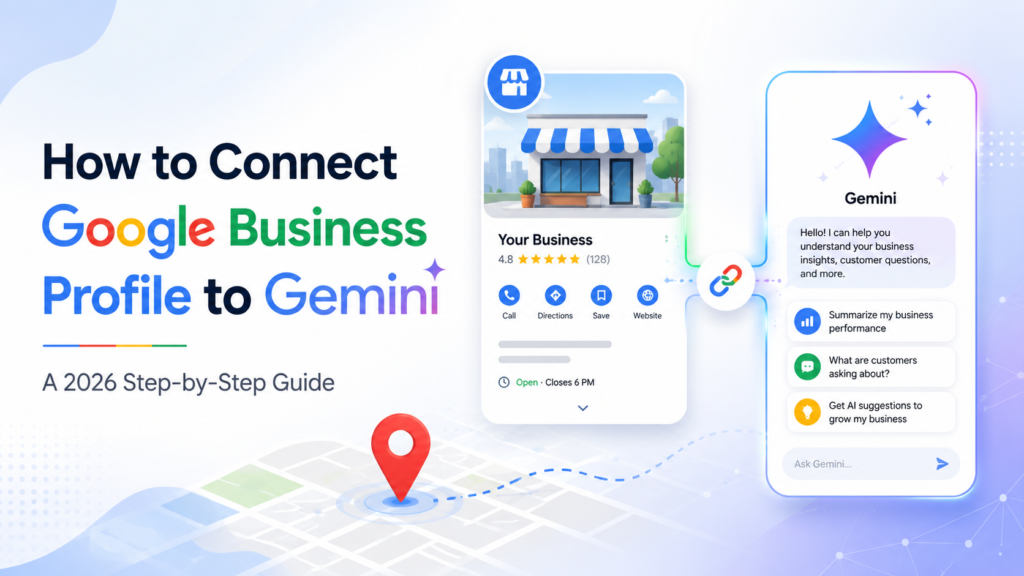
If you run a local business, one of the most useful things you can do this year takes about two minutes: learn how to connect Google Business Profile to Gemini so Google’s AI can read your reviews, your performance data, and your listing details, then help you act on them in plain language. Google rolled this integration out globally in June 2026, and it turns Gemini from a generic chatbot into an assistant that actually knows your business.
This guide walks you through the exact setup, who is eligible, what you can ask once it is connected, and what to do if the option has not shown up in your account yet. The steps are current as of 2026 and based on Google’s official documentation.
What Connecting Google Business Profile to Gemini Actually Does
When you connect your Business Profile to the Gemini app, you are giving the AI secure access to the real-world context of your business — your reviews, customer questions, listing information, and performance metrics. Instead of managing all of this through the Business Profile dashboard, you can hold a conversation.
According to Google’s official announcement, the connection lets you do four broad things:
- Update your profile conversationally — change business hours, contact information, action links, attributes, and even food menus by simply describing what you want.
- Manage customer engagement — pull up recent reviews, draft replies in your brand’s voice, and create Update, Offer, or Event posts.
- Summarise customer feedback — ask Gemini to read through your reviews and surface recurring themes and sentiment.
- Access your business insights — analyse impressions, website clicks, direction requests, bookings, and the exact search keywords customers use to find you.
The practical shift is that profile management moves from clicking through menus to asking questions. Ask “how did my business do this month?” and Gemini analyses your actual search impressions and customer actions rather than giving you a generic answer.
Before You Start: Eligibility and Requirements
This feature is being released gradually, and not every account has it yet. Before you try to connect, check that you meet Google’s requirements. Per the official Google Business Profile Help documentation, you must:
- Be an owner or manager of only one verified Business Profile. If you manage multiple profiles, the connection is not available to you yet — multi-profile support is on Google’s roadmap but has not shipped.
- Be 18 or over.
- Sign in with a personal Google Account that is associated with your Business Profile. Work or school (Google Workspace) accounts are not supported for this feature right now.
- Have “Keep Activity” turned on. Gemini cannot connect to your Business Profile if this setting is off.
There are a couple of regional and language limits worth noting. The integration is available wherever the Gemini web app works except the European Economic Area and the United Kingdom. It currently supports a set of languages that includes English and Hindi, so businesses across India are covered. And for now, the connection only works in the Gemini web app at gemini.google.com — not through every surface where Gemini appears.
How to Connect Google Business Profile to Gemini (Step by Step)
Once you meet the requirements, the connection itself is fast. Here is the process.
Step 1: Open the Gemini web app
Go to gemini.google.com in your browser. The Business Profile connection is a web-app feature, so start here rather than in a mobile assistant.
Step 2: Sign in with the right account
Make sure you are signed in with the same personal Google account you use to manage your Business Profile. This is the single most common point of failure — people are signed into a different Google account than the one that owns the listing. If you own the profile under your personal Gmail, use that, not a Workspace address.
Step 3: Ask Gemini about your business
Type a prompt asking for something from your profile, such as “Show me my recent customer reviews” or “What are my current business hours?” If your profile is eligible and detected, Gemini will offer to connect.
Step 4: Use the @Google Business Profile trigger if needed
If Gemini does not automatically reach for your profile, add @Google Business Profile to your prompt. This explicitly tells Gemini which app you want it to use. When the profile is not yet connected, you will get a prompt to connect it.
Step 5: Follow the on-screen connection steps
Review the permissions screen carefully. You are authorising Gemini to read your business information, reviews, listings, and Q&A. Accept the on-screen instructions to complete the link. You can connect or disconnect the Google Business Profile app at any time from your Connected Apps settings inside Gemini.
Step 6: Verify the connection
Confirm it worked by asking a simple question like “Show all the contact information on my profile.” If Gemini returns your real business details, the connection is live.
How to Set Up Your Business Notebook in Gemini
Alongside the connection, Google introduced Business notebooks — a dedicated space in Gemini that gives you proactive insights and tailored prompts instead of waiting for you to ask.
To create one, go to gemini.google.com signed in with your Business Profile account. If you are eligible, you will see an option to create your business notebook — select Connect. If the option is not visible, add @Google Business Profile to a prompt and Gemini will usually offer to create the notebook for you. You will then confirm your business website URL.
Once it is set up, your notebook lives in the Gemini sidebar under “Notebooks” with the same name as your business. It surfaces suggested actions — like filling in missing profile information, adding photos, or reviewing recent performance — so you are nudged toward the updates that actually move local visibility.
What You Can Ask Gemini Once It Is Connected
The connection is only useful if you know what to ask. Here are prompts, grouped by task, that work well once your profile is linked:
Managing your listing
- “Update my business description to highlight our weekend service.”
- “Review all my business attributes and tell me what is missing.”
- “Set special holiday hours for Deepavali.”
Handling reviews and posts
- “Summarise my recent reviews and tell me the common complaints.”
- “Help me draft a reply to my latest one-star review.”
- “Create an Offer post for a festive discount this week.”
Reading your performance
- “Show me my performance metrics for the past month.”
- “What are the top search keywords driving traffic to my business?”
That last prompt is quietly powerful. Knowing the exact phrases customers use to find you feeds directly into your wider search strategy — the same keyword thinking behind SEO, AEO, and GEO in digital marketing, where showing up inside AI answers is now as important as ranking in classic search results.
Troubleshooting: The Option Isn’t Showing Up
If you cannot find the connection, work through this checklist before assuming something is broken:
- Check your account. You must be signed into the personal Google account that owns the profile — not a Workspace or secondary account.
- Check how many profiles you manage. If you have access to more than one verified profile, the feature is not available to you yet.
- Turn on Keep Activity. The connection simply will not work with this setting off.
- Confirm your region. Businesses in the EEA and the UK do not have access at the moment.
- Be patient with the rollout. Google is releasing this gradually, so a fully eligible account may still be waiting in the queue. Try again in a few days.
If everything checks out and it still isn’t appearing, the most likely answer is simply that the rollout has not reached your account yet.
Why This Matters for Local Businesses in India
For a clinic in Mysuru, a boutique in Bengaluru, or a coaching centre in Mangaluru, your Business Profile is often the first thing a customer sees — before your website, before your ads. Connecting it to Gemini lowers the effort of keeping that first impression sharp: fewer neglected reviews, fewer outdated hours, more consistent posts.
It also plugs into a bigger shift. AI systems increasingly decide which local business to recommend, and they reward listings that are complete, active, and consistent. A well-managed Business Profile is now a ranking signal for AI-driven local search, not just a nice-to-have. This is exactly the kind of practical, AI-first skill we teach founders and marketers — the same thinking that runs through our guide on digital marketing for business owners and the digital marketing skills Mysore businesses need today.
If you want to go deeper — running paid campaigns alongside your profile, or using AI tools across your whole marketing workflow — pair this with our beginner guide to Google Ads for local business and our walkthrough of how ChatGPT helps with SEO, ads, and content. Connecting Gemini to your listing is a five-minute task. Knowing what to do with the insights is the real skill.
Frequently Asked Questions
Is connecting Google Business Profile to Gemini free?
Yes. The integration is available to Google Business Profile users at no additional cost. You only need an eligible, verified profile and a personal Google account signed into the Gemini web app.
Can I connect multiple business profiles to Gemini?
Not yet. At launch, the feature is only available to owners or managers of a single verified Business Profile. If you manage more than one, you will not see the connection option. Google has said multi-profile support is planned for a future update.
Why can’t I see the option to connect my profile?
The most common reasons are being signed into the wrong Google account, managing more than one profile, having “Keep Activity” switched off, being located in the EEA or UK, or simply not having received the gradual rollout yet. Work through each of these before assuming a technical fault.
Does Gemini change my profile without asking?
No. When you connect, you are authorising Gemini to read your business information and help you draft changes. It asks for your confirmation before applying updates, so you stay in control of what goes live on your listing.
Can I use Gemini to manage my Business Profile in Hindi?
Yes. The supported language list includes both English and Hindi, so businesses across India can manage their profile and read insights in either language through the Gemini web app.
Do I still need to learn SEO if Gemini manages my profile?
Yes. Gemini makes profile management faster, but it does not replace strategy. Understanding keywords, local search, and AI search behaviour is what lets you interpret Gemini’s insights and turn them into growth. A structured digital marketing course in Mysore or an AI productivity program gives you that foundation.
About the author: Jayateerth Kulkarni is the founder of ETMark Academy and Sugar Salt Media, a digital marketing agency based in Mysuru. He describes himself as “by chance an engineer, by choice a marketeer, by courage a trainer,” and has trained 700+ learners while running live campaigns for clients across real estate, healthcare, education, and e-commerce. He also serves as visiting faculty at MS Ramaiah, RV University, and Christ College.